When to use grid or table or for each in VBCS

While showing collections, we can use oj-table or oj-data-grid or we can use oj-for-each to display multiple values

When we show some data which comes in API, and we don’t have to much grouping and all we can show as table

If the data has few actions like approve or to update few columns like Quantity or Price or has some links to open in a page to view some more data or link to download some data we can use table

When we want to have a screen with large amount of data, where user will add multiple rows, edit like a excel instead of table we can use data grid. Data grid has better edit support than editable table. It is easy to handle edit events on data grid.

If we want to show summary based on some columns, like we are showing crick players information like number of sixes or total number of runs scored or total wickets taken per team, we can have player records and team records to show total. This will be better achieved with grid.

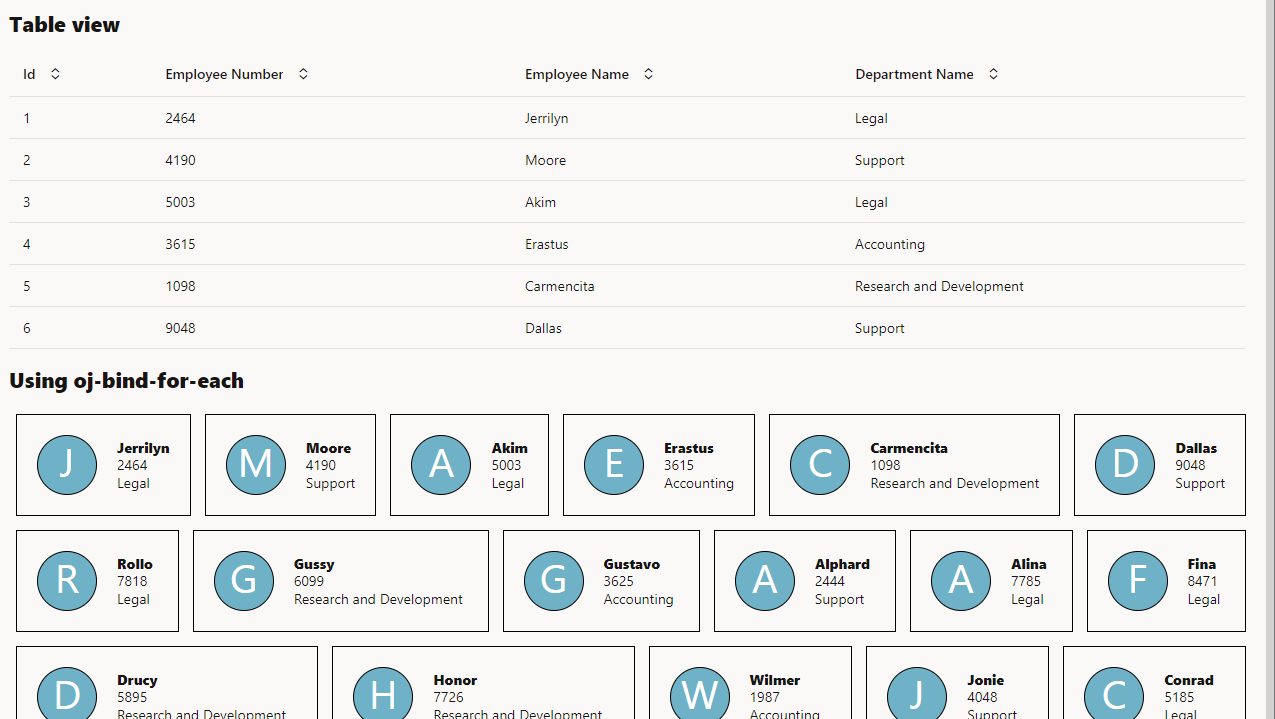
If we want to show People like data with images or some products like shirts, cars or something else where having a different look and feel, than table helps.

We can also provide option to change the view from table to grid to for-each

e.g.:

live link – https://khalil232.com/apps/ojet-apps/?ojr=collections-view-option

Format number in VBCS page using functions

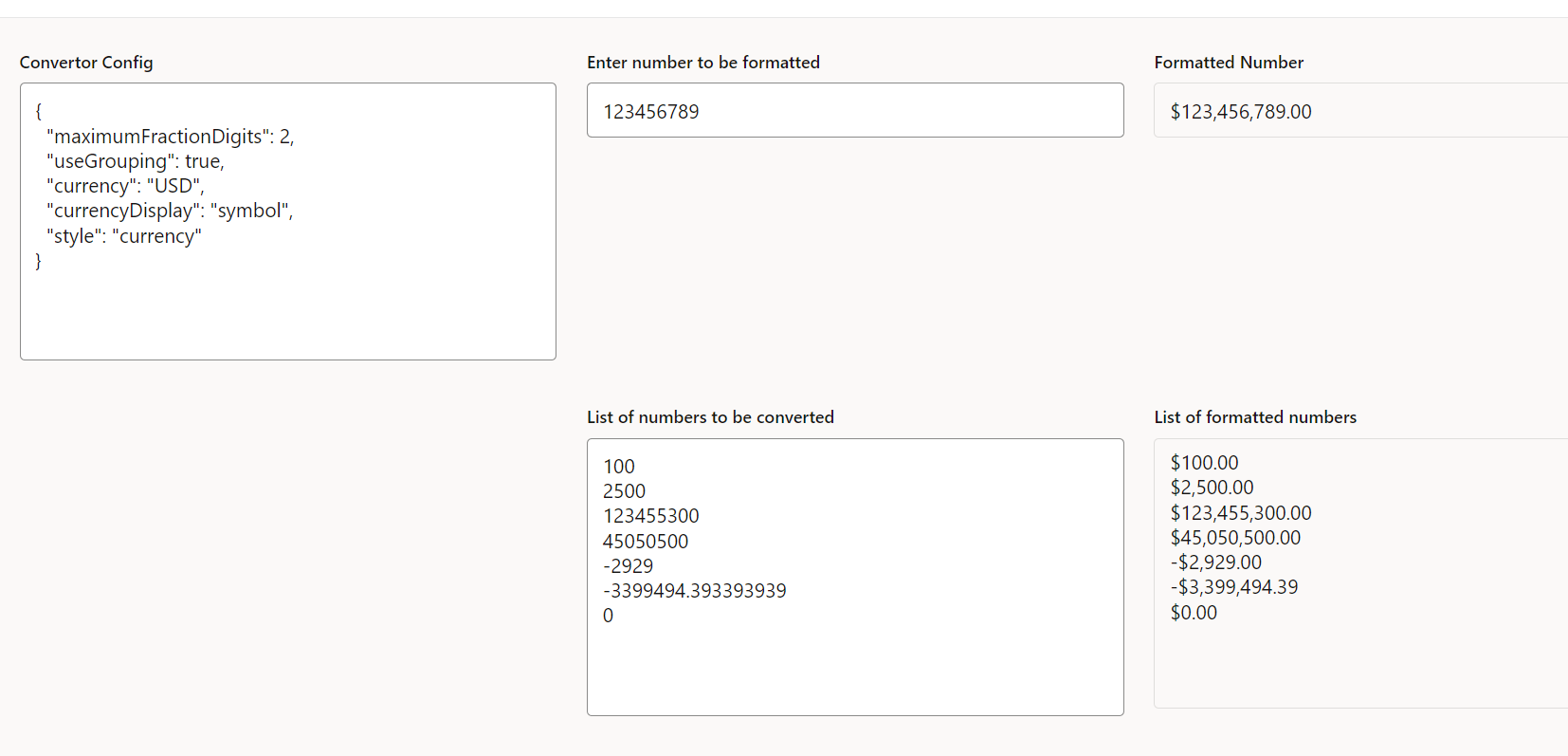
You can use oj-input-number tag for showing formatted number and use convertor options

But when using above component only for read-only purpose to show some values in grid or table, it doesn’t make sense to use input fields.

Instead we can use oj-bind-text field and pass data using following javascript function.

The JavaScript function will add necessary formatting to the number and return the value as string.

We can use number convertor functions to format the number in required format

Live code preview

JavaScript function

define(["ojs/ojconverter-number"], (numberConverter) => {
  "use strict";

  class PageModule {
    convertNumberToStr(amount) {
      var numberConvertor = new numberConverter.IntlNumberConverter({
        maximumFractionDigits: 2,
        useGrouping: true,
        currency: "USD",
        currencyDisplay: "symbol",
        style: "currency",
      });

      return numberConvertor.format(amount.rate);
    }
  }

  return PageModule;
});

Config options

Field nameField valueInputOutput
maximumFractionDigits 224599.44249424599.44
024599.44249424599
useGrouping true 1232459912,324,599
false 1232459912324599
currency USD12324599$12,324,599.00
INR12324599₹12,324,599.00
EUR12324599€12,324,599.00
currencyDisplay symbol12324599USD 12,324,599
code 12324599$12,324,599
name 1232459912,324,599 US Dollar
style percent 0.769576.95%
currency 12324599$12,324,599.38
decimal 12324599.383812324599.38

Commonly used config options

to show currency amount like $12,324,599.38 or €12,324,599.38

{
  "maximumFractionDigits": 2,
  "useGrouping": true,
  "currency": "USD",
  "currencyDisplay": "symbol",
  "style": "currency",
}

to show percentage like 60% or 80.4%

{
  "maximumFractionDigits": 2,
  "useGrouping": false,
  "style": "percent",
}

to show whole number values

{
  "maximumFractionDigits": 0,
  "useGrouping": true,
  "style": "decimal"
}

References –

oj-input-number convertor related code

https://www.oracle.com/webfolder/technetwork/jet/jetCookbook.html?component=inputNumber&demo=inputNumberConverter#

jsDoc for IntlNumberConverter ( to view all convertor options like useGrouping, currency )

https://www.oracle.com/webfolder/technetwork/jet/jsdocs/oj.IntlNumberConverter.html

Live application URL ( to try out few configs )

https://khalil232.com/apps/ojet-apps/?ojr=number-format-sample

How to make scroll bar thicker in vbcs table or gird

Update 01-Feb-2025 02:54 AM use this code instead

#employeetable > * {
  scrollbar-width: auto;
}

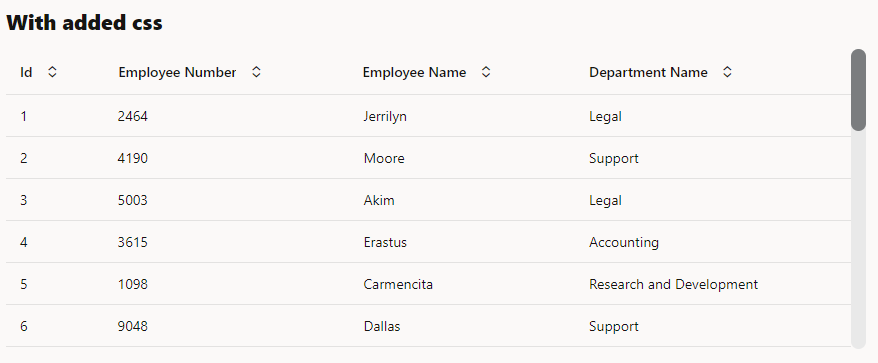
Based on the default redwood theme the table and grid scoll bar are very thin

User can update it by adding the following code in app.css in vbcs application.

#employeetable::-webkit-scrollbar-track {
  border-radius: 15px;
  background-color: #e9e9e9;
  border-radius: 15px;
}

#employeetable ::-webkit-scrollbar {
  width: 15px;
  height: 15px;
  background-color: #e9e9e9;
  border-radius: 15px;
}
#employeetable ::-webkit-scrollbar-thumb {
  width: 15px;
  height: 15px;
  border-radius: 15px;
  background-color: #7b7d7f;
}

width will increase the thickness of vertical scroll bar

height will increase the thickness of horizontal scroll bar.

Screenshot without additional css

Screenshot with additional css

Live application example ( hover on the application to view scroll bar ) :

Link to view application in new tab – https://khalil232.com/apps/ojet-apps/?ojr=thick-scrollbar

To show loading spinner in VBCS

Users can add the following html code in designer to add a loading spinner in vbcs.

On button click they can call component ( #loading-dialog ) and select open method.

Now loading dialog is shown, they do some action and after action is completed, they can call component ( #loading-dialog ) and select close method.

Code for loading dialog

<oj-dialog dialog-title="Loading" id="loading-dialog" cancel-behavior="none" class="">
    <div slot="body">
        <div class="oj-flex oj-sm-justify-content-center">
            <oj-progress-circle size="md" value="-1"></oj-progress-circle>
        </div>
    </div>
    <div slot="footer">
    </div>
</oj-dialog>

View live example in new page – https://khalil232.com/apps/ojet-apps/?ojr=loading-dialog

Commonly used Buttons in VBCS

Button is element for user to interact. On button click we can call some rest API or show some message.

<oj-button label="Download" >
</oj-button>

Link for viewing the buttons code with styles – https://khalil232.com/apps/ojet-apps/?ojr=button

Here are few buttons which I regularly use

Code for button with icon

<oj-button label="Download" >
    <span class="oj-ux-ico-download" slot="startIcon"></span>
</oj-button>

Toolbar buttons Add row, Edit Row, Delete Row buttons ( generally used above a table or for each loop )

<div class="oj-flex">
  <oj-toolbar chroming="solid" class="oj-flex-item oj-sm-12 oj-md-12">
    <oj-button label="Add" class="oj-button-sm">
      <span class="oj-ux-ico-plus" slot="startIcon"></span>
    </oj-button>
    <oj-button label="Edit" class="oj-button-sm">
      <span class="oj-ux-ico-edit" slot="startIcon"></span>
    </oj-button>
    <oj-button label="Delete" class="oj-button-sm">
      <span class="oj-ux-ico-trash" slot="startIcon"></span>
    </oj-button>
  </oj-toolbar>
</div>

Save and cancel button in dialog box

<oj-dialog dialog-title="Dialog" id="add-dialog" initial-visibility="show">
  <div slot="body">
    <div class="oj-flex">
      <div class="oj-flex-item oj-sm-12 oj-md-12">
        <oj-form-layout>
          <oj-input-text label-hint="Text"></oj-input-text>
        </oj-form-layout>
      </div>
    </div>
  </div>
  <div slot="footer">
    <oj-button label="Save" class="oj-button-sm" chroming="callToAction">
      <span class="oj-ux-ico-save" slot="startIcon"></span>
    </oj-button>
    <oj-button label="Cancel" class="oj-button-sm">
      <span class="oj-ux-ico-close" slot="startIcon"></span>
    </oj-button>
  </div>
</oj-dialog>

Close button ( for message only dialog box )

<oj-dialog dialog-title="Dialog" id="add-dialog" initial-visibility="show">
  <div slot="body">
    <div class="oj-flex">
      <div class="oj-flex-item oj-sm-12 oj-md-12">
        Form Submitted successfully.
      </div>
    </div>
  </div>
  <div slot="footer">
    <oj-button label="Close" class="oj-button-sm">
      <span class="oj-ux-ico-close" slot="startIcon"></span>
    </oj-button>
  </div>
</oj-dialog>

Inline action items of table ( to provide inline edit or inline delete or to view more details )

<div class="oj-flex">
  <oj-table scroll-policy="loadMoreOnScroll" class="oj-flex-item oj-sm-12 oj-md-12"
    data="[[$variables.employeeListSDP]]"
    columns='[{"headerText":"Id","field":"id"},{"headerText":"empNumber","field":"empNumber"},{"headerText":"empName","field":"empName"},{"headerText":"Action","field":"","template":"Action"}]'>
    <template slot="Action">
      <oj-button label="Edit" class="oj-button-sm">
        <span class="oj-ux-ico-edit" slot="startIcon"></span>
      </oj-button>
      <oj-button label="Delete" class="oj-button-sm">
        <span class="oj-ux-ico-trash" slot="startIcon"></span>
      </oj-button>
    </template>
  </oj-table>
</div>

For inline navigation to a different page give link instead of button

<div class="oj-flex">
  <oj-table scroll-policy="loadMoreOnScroll" class="oj-flex-item oj-sm-12 oj-md-12"
    data="[[$variables.employeeListSDP]]"
    columns='[{"headerText":"Id","field":"id"},{"headerText":"empNumber","field":"empNumber"},{"headerText":"empName","field":"empName"},{"headerText":"departmentNumber","field":"departmentNumber"},{"headerText":"departmentNumberObject","template":"department"}]'>
    <template slot="department">
      <oj-bind-if test="[[ $current.row.departmentNumberObject.count > 0 ]]">
        <a target="_blank" class="oj-link">
          <oj-bind-text value="[[$current.row.departmentNumberObject.items[0].name]]"></oj-bind-text>
        </a>
      </oj-bind-if>
    </template>
  </oj-table>
</div>

In Form Save Cancel buttons ( Don’t give reset here ) as forms could be long and accidently clicking will remove all data

<div class="oj-flex">
  <div class="oj-flex-item oj-sm-12 oj-md-4">
    <oj-form-layout class="oj-formlayout-full-width" direction="row" label-edge="inside" columns="2"   label-width="45%" user-assistance-density="compact">
      <oj-label-value colspan="2" label-edge="start">
        <oj-label for="name-input" slot="label">Name</oj-label>
        <oj-input-text id="name-input" slot="value" ></oj-input-text>
      </oj-label-value>
      <oj-label-value colspan="2" label-edge="start">
        <oj-label for="city-input" slot="label">City</oj-label>
        <oj-input-text id="city-input" slot="value" "></oj-input-text>
      </oj-label-value>
      <oj-button label="Save" class="oj-button-sm oj-button-full-width">
        <span class="oj-ux-ico-save" slot="startIcon"></span>
      </oj-button>
      <oj-button label="Cancel" class="oj-button-sm oj-button-full-width">
        <span class="oj-ux-ico-close" slot="startIcon"></span>
      </oj-button>
    </oj-form-layout>
  </div>
</div>

In Search ( Search, Reset, Cancel ) ( Reset should reset the form to how it is shown on page load )

<div class="oj-flex">
  <div class="oj-flex-item oj-sm-12 oj-md-4">
    <oj-form-layout class="oj-formlayout-full-width" direction="row" label-edge="inside"
      user-assistance-density="compact">
      <oj-label-value label-edge="start" label-width="35%">
        <oj-label for="name-input" slot="label">Name</oj-label>
        <oj-input-text id="name-input" slot="value"></oj-input-text>
      </oj-label-value>
      <oj-label-value label-edge="start" label-width="35%">
        <oj-label for="city-input" slot="label">City
        </oj-label>
        <oj-input-text id="city-input" slot="value" "></oj-input-text>
      </oj-label-value>
      <oj-button label=" Search" class="oj-button-sm" chroming="callToAction">
        <span class="oj-ux-ico-search" slot="startIcon"></span>
      </oj-button>
      <oj-button label="Reset" class="oj-button-sm">
        <span class="oj-ux-ico-reset-variable" slot="startIcon"></span>
      </oj-button>
    </oj-form-layout>
  </div>
</div>

Commonly used buttons and icons

Download - <span class="oj-ux-ico-download" ></span>
Submit -  <span class="oj-ux-ico-check" ></span>
Save  -  <span class="oj-ux-ico-save" ></span>
Reset  -  <span class="oj-ux-ico-reset-variable" ></span>
Clear -  <span class="oj-ux-ico-close" ></span>
Add  -  <span class="oj-ux-ico-plus" ></span>
Edit  -  <span class="oj-ux-ico-edit" ></span>
Delete -  <span class="oj-ux-ico-trash" ></span>
Upload -  <span class="oj-ux-ico-upload" ></span>
View -  <span class="oj-ux-ico-view" ></span>

Link for VBCS icons – https://static.oracle.com/cdn/fnd/gallery/2401.0.0/images/preview/index.html

How to download business object data as csv file in Visual Builder Cloud Service ( VBCS )

  1. Configure business object ( Ex: Country )
  2. Load data into business object
  3. Add a download button.
  4. On button click call rest API to fetch all data in business object using action chain.
  5. Create CSV content as blob
  6. Download blob file using JavaScript function

Sample BO data

IdCountry NameCountry Short Code
21AfghanistanAF
22AlbaniaAL
23AlgeriaDZ
24American SamoaAS
25AndorraAD
26AngolaAO
27AnguillaAI

HTML Code for button

<oj-button label="Download" on-oj-action="[[$listeners.buttonAction]]">
    <span class="oj-ux-ico-download" slot="startIcon"></span>
</oj-button>

Action chain code for calling Javascript function

{
  "description": "",
  "root": "callFunctionDownloadDataFromBO",
  "actions": {
    "callFunctionDownloadDataFromBO": {
      "module": "vb/action/builtin/callModuleFunctionAction",
      "parameters": {
        "module": "[[ $functions ]]",
        "functionName": "downloadDataFromBO"
      }
    }
  },
  "variables": {}
}

JavaScript function code to call business object rest API and download as csv

define(['vb/helpers/rest'], (Rest) => {
  'use strict';

  class PageModule {

    getLineItems(prevItems) {

      if (prevItems == undefined || prevItems == null) {
        prevItems = [];
      }

      let endpointurl = "businessObjects/getall_Country";
      let queryString = "id is not null";

      var pageModuleVar = this;
      return new Promise(function (resolve, reject) {

        var ep = Rest.get(endpointurl);
        ep.parameters({ 
        "q": queryString, 
        "onlyData": true, 
        limit: 500, 
        offset: prevItems.length,
        "orderBy": "id:asc"
         });
        ep.fetch().then(function (result) {
          if (result.response.ok) {
            var currentItems = prevItems.concat(result.body.items);
            if (result.body.hasMore == true) {
              resolve(pageModuleVar.getLineItems(currentItems));
            }
            else {
              resolve(currentItems);
            }
          }
          else {
            resolve([]);
          }
        });

      });
    }

    async downloadDataFromBO() {
      let lineItems = [];
      lineItems = await this.getLineItems(lineItems);

      let fieldNames = [
        {
          "display": "Id",
          "fieldName": "id"
        }, {
          "display": "Country Name",
          "fieldName": "countryName"
        }, {
          "display": "Country Code",
          "fieldName": "countryShortCode"
        }
      ];

      let headerLine = fieldNames.map(function (fieldObj) {
        return fieldObj.display;
      }).join(",");

      let csvData = headerLine;

      for (let i = 0; i < lineItems.length; i++) {
        csvData += "\r\n";

        let csvRow = "";

        for (let j = 0; j < fieldNames.length; j++) {
          csvRow += '"' + lineItems[i][fieldNames[j].fieldName] + '"' + ",";
        }

        csvData += csvRow;
      }

      const blob = new Blob([csvData], { type: 'text/csv' });
      const url = window.URL.createObjectURL(blob);
      const a = document.createElement('a');

      a.setAttribute('href', url);
      a.setAttribute('download', 'download.csv');
      a.click();
    }
  }

  return PageModule;
});