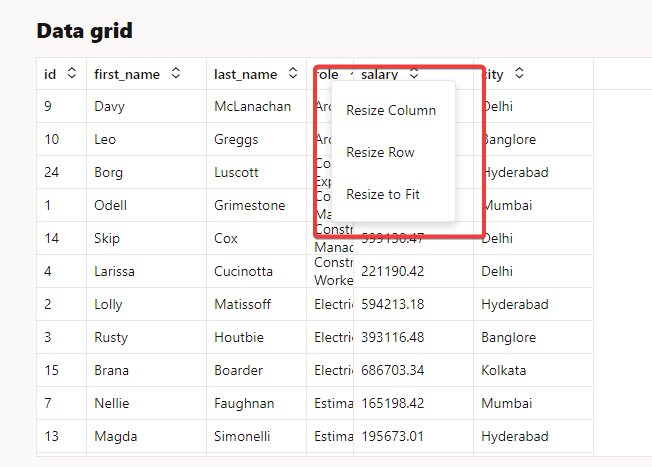
We can enable resize in oj-data-grid by adding the following html code to <oj-data-grid>:
<oj-data-gridid="datagrid"style="width:100%;height:400px"aria-label="My Data Grid"data='{{ salaryDataADP }}'header.column.style="[[ headerColStyle ]]"header.column.resizable.width="enable"header.column.resizable.height="enable"header.row.resizable.width="enable"header.row.resizable.height="enable"header.column.class-name="oj-helper-justify-content-flex-start"cell.class-name="oj-helper-justify-content-flex-start"><oj-menuslot="contextMenu"aria-label="Employee Edit"><oj-optionid="resizeWidth"value="Resize Width"data-oj-command="oj-datagrid-resizeWidth"></oj-option><oj-optionid="resizeHeight"value="Resize Height"data-oj-command="oj-datagrid-resizeHeight"></oj-option><oj-optionid="resizeFitToContent"value="Resize Fit To Content"data-oj-command="oj-datagrid-resizeFitToContent"></oj-option></oj-menu></oj-data-grid>
The following attributes on the header will allow resizing. When hovering on a border, the user can resize the row or column height or width.
To add an additional right-click menu, we can add the below code. The user can right-click and click on Resize width, and enter a desired width, like 100 or 200.
<oj-menuslot="contextMenu"aria-label="Employee Edit"><oj-optionid="resizeWidth"value="Resize Width"data-oj-command="oj-datagrid-resizeWidth"></oj-option><oj-optionid="resizeHeight"value="Resize Height"data-oj-command="oj-datagrid-resizeHeight"></oj-option><oj-optionid="resizeFitToContent"value="Resize Fit To Content"data-oj-command="oj-datagrid-resizeFitToContent"></oj-option></oj-menu>
There are other commands available, like below ( see the jsdoc link for more information ). Few features are supported only in latest version of JET
Default Function
data-oj-command value
Resize menu (contains width and height resize)
oj-datagrid-resize
Sort Row menu (contains ascending and descending sort)
oj-datagrid-sortRow
Sort Column menu (contains ascending and descending sort)