Button is element for user to interact. On button click we can call some rest API or show some message.
< oj-button label = " Download " > </ oj-button >
Link for viewing the buttons code with styles – https://khalil232.com/apps/ojet-apps/?ojr=button
Here are few buttons which I regularly use
Code for button with icon
< oj-button label = " Download " > < span class = " oj-ux-ico-download " slot = " startIcon " ></ span > </ oj-button > Toolbar buttons Add row, Edit Row, Delete Row buttons ( generally used above a table or for each loop )
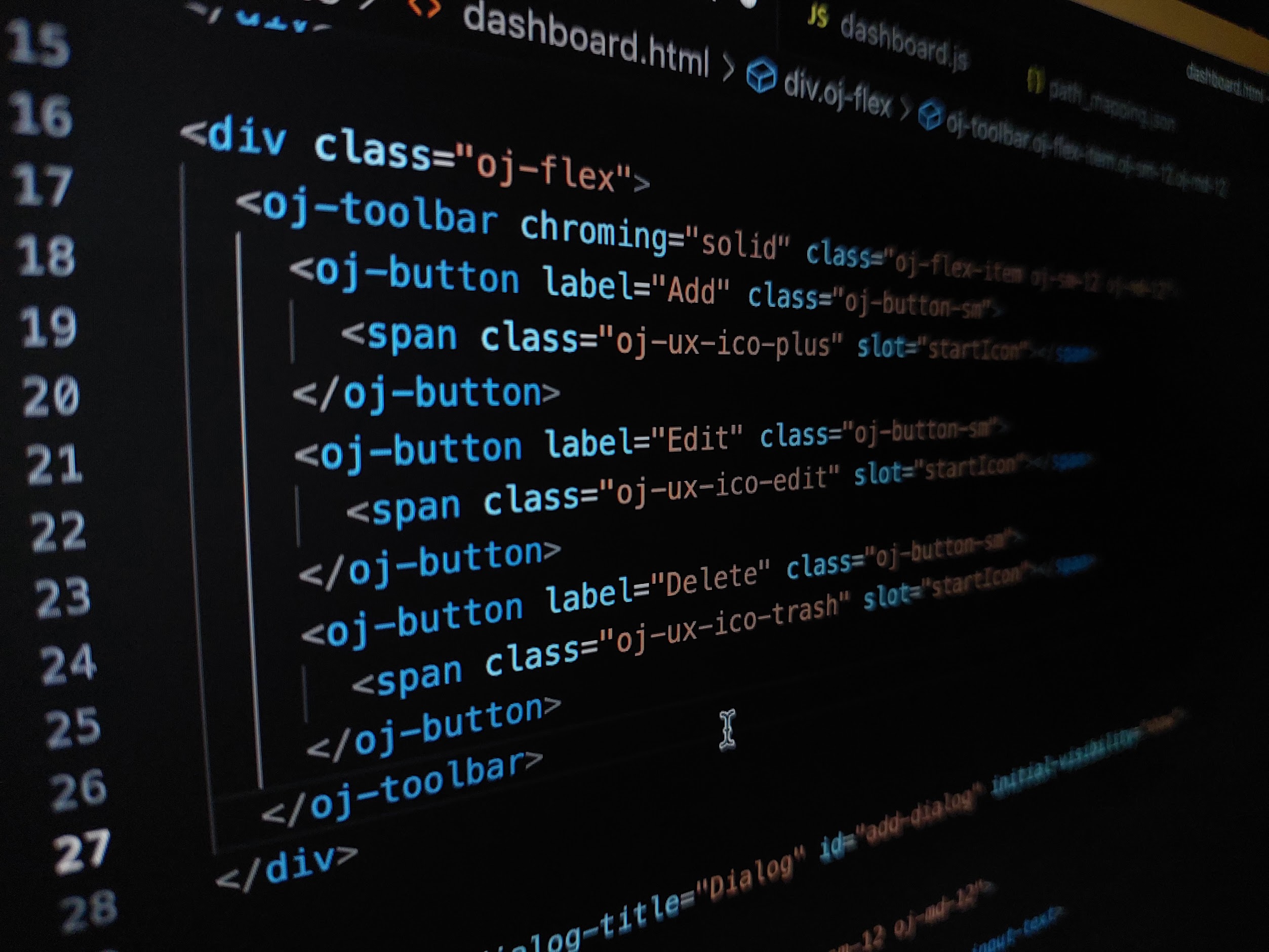
< div class = " oj-flex " > < oj-toolbar chroming = " solid " class = " oj-flex-item oj-sm-12 oj-md-12 " > < oj-button label = " Add " class = " oj-button-sm " > < span class = " oj-ux-ico-plus " slot = " startIcon " ></ span > </ oj-button > < oj-button label = " Edit " class = " oj-button-sm " > < span class = " oj-ux-ico-edit " slot = " startIcon " ></ span > </ oj-button > < oj-button label = " Delete " class = " oj-button-sm " > < span class = " oj-ux-ico-trash " slot = " startIcon " ></ span > </ oj-button > </ oj-toolbar > </ div > Save and cancel button in dialog box
< oj-dialog dialog-title = " Dialog " id = " add-dialog " initial-visibility = " show " > < div slot = " body " > < div class = " oj-flex " > < div class = " oj-flex-item oj-sm-12 oj-md-12 " > < oj-form-layout > < oj-input-text label-hint = " Text " ></ oj-input-text > </ oj-form-layout > </ div > </ div > </ div > < div slot = " footer " > < oj-button label = " Save " class = " oj-button-sm " chroming = " callToAction " > < span class = " oj-ux-ico-save " slot = " startIcon " ></ span > </ oj-button > < oj-button label = " Cancel " class = " oj-button-sm " > < span class = " oj-ux-ico-close " slot = " startIcon " ></ span > </ oj-button > </ div > </ oj-dialog > Close button ( for message only dialog box )
< oj-dialog dialog-title = " Dialog " id = " add-dialog " initial-visibility = " show " > < div slot = " body " > < div class = " oj-flex " > < div class = " oj-flex-item oj-sm-12 oj-md-12 " > Form Submitted successfully. </ div > </ div > </ div > < div slot = " footer " > < oj-button label = " Close " class = " oj-button-sm " > < span class = " oj-ux-ico-close " slot = " startIcon " ></ span > </ oj-button > </ div > </ oj-dialog > Inline action items of table ( to provide inline edit or inline delete or to view more details )
< div class = " oj-flex " > < oj-table scroll-policy = " loadMoreOnScroll " class = " oj-flex-item oj-sm-12 oj-md-12 " data = " [[$variables.employeeListSDP]] " columns = ' [{"headerText":"Id","field":"id"},{"headerText":"empNumber","field":"empNumber"},{"headerText":"empName","field":"empName"},{"headerText":"Action","field":"","template":"Action"}] ' > < template slot = " Action " > < oj-button label = " Edit " class = " oj-button-sm " > < span class = " oj-ux-ico-edit " slot = " startIcon " ></ span > </ oj-button > < oj-button label = " Delete " class = " oj-button-sm " > < span class = " oj-ux-ico-trash " slot = " startIcon " ></ span > </ oj-button > </ template > </ oj-table > </ div > For inline navigation to a different page give link instead of button
< div class = " oj-flex " > < oj-table scroll-policy = " loadMoreOnScroll " class = " oj-flex-item oj-sm-12 oj-md-12 " data = " [[$variables.employeeListSDP]] " columns = ' [{"headerText":"Id","field":"id"},{"headerText":"empNumber","field":"empNumber"},{"headerText":"empName","field":"empName"},{"headerText":"departmentNumber","field":"departmentNumber"},{"headerText":"departmentNumberObject","template":"department"}] ' > < template slot = " department " > < oj-bind-if test = " [[ $current.row.departmentNumberObject.count > 0 ]] " > < a target = " _blank " class = " oj-link " > < oj-bind-text value = " [[$current.row.departmentNumberObject.items[0].name]] " ></ oj-bind-text > </ a > </ oj-bind-if > </ template > </ oj-table > </ div > In Form Save Cancel buttons ( Don’t give reset here ) as forms could be long and accidently clicking will remove all data
< div class = " oj-flex " > < div class = " oj-flex-item oj-sm-12 oj-md-4 " > < oj-form-layout class = " oj-formlayout-full-width " direction = " row " label-edge = " inside " columns = " 2 " label-width = " 45% " user-assistance-density = " compact " > < oj-label-value colspan = " 2 " label-edge = " start " > < oj-label for = " name-input " slot = " label " > Name </ oj-label > < oj-input-text id = " name-input " slot = " value " ></ oj-input-text > </ oj-label-value > < oj-label-value colspan = " 2 " label-edge = " start " > < oj-label for = " city-input " slot = " label " > City </ oj-label > < oj-input-text id = " city-input " slot = " value " "></ oj-input-text > </ oj-label-value > < oj-button label = " Save " class = " oj-button-sm oj-button-full-width " > < span class = " oj-ux-ico-save " slot = " startIcon " ></ span > </ oj-button > < oj-button label = " Cancel " class = " oj-button-sm oj-button-full-width " > < span class = " oj-ux-ico-close " slot = " startIcon " ></ span > </ oj-button > </ oj-form-layout > </ div > </ div > In Search ( Search, Reset, Cancel ) ( Reset should reset the form to how it is shown on page load )
< div class = " oj-flex " > < div class = " oj-flex-item oj-sm-12 oj-md-4 " > < oj-form-layout class = " oj-formlayout-full-width " direction = " row " label-edge = " inside " user-assistance-density = " compact " > < oj-label-value label-edge = " start " label-width = " 35% " > < oj-label for = " name-input " slot = " label " > Name </ oj-label > < oj-input-text id = " name-input " slot = " value " ></ oj-input-text > </ oj-label-value > < oj-label-value label-edge = " start " label-width = " 35% " > < oj-label for = " city-input " slot = " label " > City </ oj-label > < oj-input-text id = " city-input " slot = " value " "></ oj-input-text > </ oj-label-value > < oj-button label = " Search " class = " oj-button-sm " chroming = " callToAction " > < span class = " oj-ux-ico-search " slot = " startIcon " ></ span > </ oj-button > < oj-button label = " Reset " class = " oj-button-sm " > < span class = " oj-ux-ico-reset-variable " slot = " startIcon " ></ span > </ oj-button > </ oj-form-layout > </ div > </ div > Commonly used buttons and icons
Download - < span class = " oj-ux-ico-download " ></ span > Submit - < span class = " oj-ux-ico-check " ></ span > Save - < span class = " oj-ux-ico-save " ></ span > Reset - < span class = " oj-ux-ico-reset-variable " ></ span > Clear - < span class = " oj-ux-ico-close " ></ span > Add - < span class = " oj-ux-ico-plus " ></ span > Edit - < span class = " oj-ux-ico-edit " ></ span > Delete - < span class = " oj-ux-ico-trash " ></ span > Upload - < span class = " oj-ux-ico-upload " ></ span > View - < span class = " oj-ux-ico-view " ></ span >
Link for VBCS icons – https://static.oracle.com/cdn/fnd/gallery/2401.0.0/images/preview/index.html